
Add and verify your domain
- Open Organic → Setup. Enter the Website domain, such as
example.com, and choose Add site. - In that site’s card, copy either the DNS TXT host and TXT value, or the File URL and Contents. Publish one of these ownership proofs.
- If your DNS provider appends your domain automatically, use
_autoadyfor its Host or Name field. Otherwise use the full hostname shown. For file verification, serve the exact token at the supplied public URL. - Choose Check again. Wait for the site’s Verified status and verification method.
- Select the domain’s card, or the Site selector when several sites are registered. Set Pages per crawl before running; the choices range from 25 to 1,000 pages.
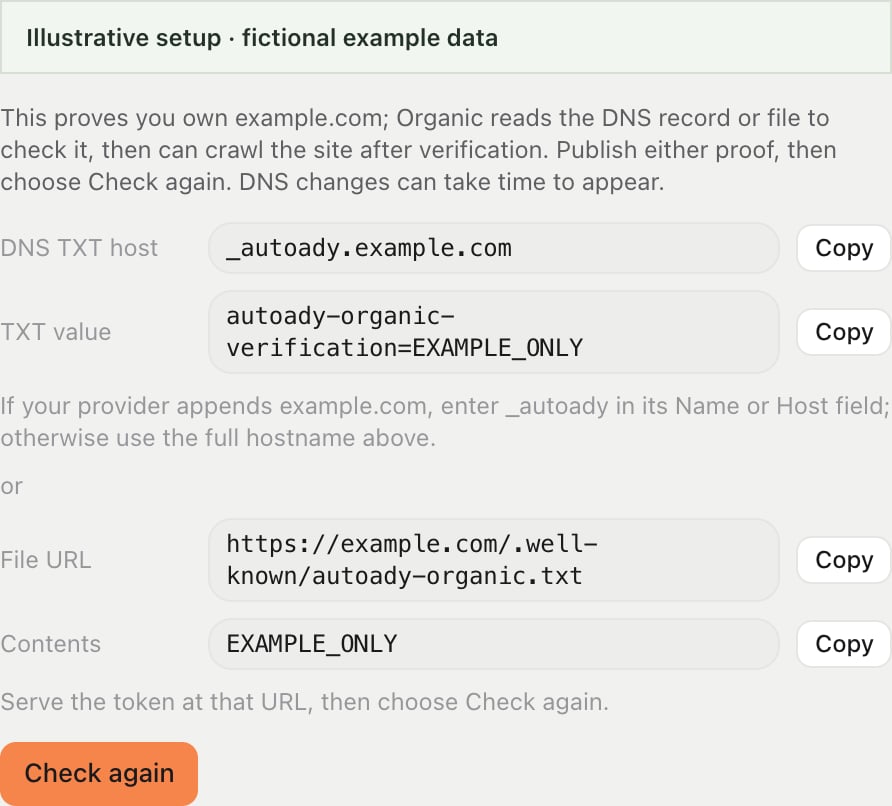
Illustrative ownership proof. Copy your own site's values; EXAMPLE_ONLY is not a working token.
Run and read the first audit
Open Audits and choose Run audit. Wait for Crawling to finish, then check the selected domain, last-run time, pages fetched, pages reused from cache, and completion state. Read the findings and AI crawler access results; use Pages to inspect the pages covered. An audit score describes the checks performed. It does not promise a search ranking, an AI mention, or visitor traffic. A blocked crawler and a failed crawl are different problems: read the affected URL or crawler result before changing the site. Run audit can reuse pages cached within 24 hours. Re-read everything bypasses that cache and uses the same access and monthly-run limits. The workbench’s Refresh button reloads stored results; it does not start another crawl.Activate advanced Organic
Only the workspace owner can change Organic billing. In Setup, choose the number of sites under Sites to cover, read the recurring total, and choose Add Organic. Current purchase controls cover 1–10 sites. Organic is billed as its own subscription alongside the paid AutoAdy plan; use the displayed currency and price. On return from checkout, Switching Organic on means activation is still being confirmed. Wait for Organic is on and the unlocked site count. If Organic is on its way persists, choose Retry or the support link; avoid a second checkout for the same purchase. The activation panel may start a first audit for verified sites. Choose View audit to follow it. Otherwise choose Run your first audit, then Run audit in Audits. For an unverified domain, choose Open Setup and finish ownership proof first. In Setup, Organic is active · N sites confirms active capacity. To increase it, set New number of sites, choose Add a site or Add N sites, and review the new recurring total and prorated difference before confirming. These controls add capacity; use Settings → Billing → Manage billing for subscription cancellation. Removing a registered domain does not itself cancel purchased capacity. If billing access cannot load, use Retry billing access. Choose a plan first opens Billing when a paid plan is required. An unavailable Add Organic button shows its reason; your plan’s included monthly crawl can still be available.Connect Search Console and track a keyword
With advanced access, select the site in Setup and choose Connect Google in its Search Console section. Grant Search Console permission, return, choose Choose property, then select the Property covering that domain. Choose Capture now and confirm the displayed property, collection window, and capture date. Search Console’s settled data window does not run through today. If access was omitted, choose Reconnect and grant it. In Rankings, enter a concrete query such asceramic travel mug, then choose Add. New queries are checked on the next scheduled sweep; Check now requests a current check. Confirm the query appears under Tracked keywords and read its result date.
Checks run daily for the US on desktop and measure the top 100 results. “Outside the top 100” is different from a failed lookup. Read the displayed used/total quota: paused keywords still occupy it. Pause stops scheduled checks, Resume restarts them, and Remove frees the tracked-keyword slot.