
Make a first asset
- Confirm the account context, then open Studio → Create.
- Choose the composer mode that fits the work: Freeform for your prompt, Auto for guided work, or Matrix for a structured set of variations. Use Browse presets for an available recipe.
- Add the prompt and reference material required by the chosen flow. Describe the actual product, audience, offer, intended format, and what must stay accurate.
- Review the generation settings and displayed credit requirement before starting.
- Inspect the finished image and copy. Check logos, product details, readable text, factual claims, offer terms, and placement fit.
- Download the asset or open Add to Campaign when it is ready. Choose the Campaign and Ad Set, review the copy and destination, then inspect the final action before confirming it.
Review image preparation
Use the composer to check the prompt, references, mode, and image settings. This screenshot uses fictional example data.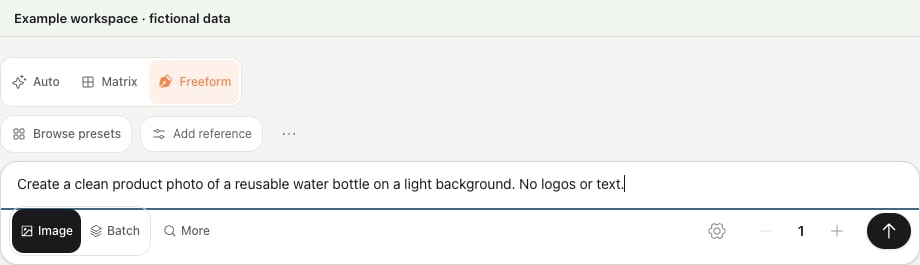
Prepare the prompt and review settings before generating.
Finish with a usable draft
- The output belongs to the intended account and the prompt/reference describes the actual product and offer.
- Logos, product details, text, and claims have been checked in the output itself.
- The aspect ratio and readable content fit the intended placement.
- You have downloaded or saved the output; any failed save uses Retry saving to Studio rather than another generation.
- Any later Add to Campaign action is reviewed separately. Preparing an asset does not launch an ad.
Write a useful prompt
For example: “Create an image for our ceramic travel mug. Show the mug clearly on a desk, keep the reference product shape, and leave room for a short headline. Do not invent certifications, pricing, or discount claims.” Keep a stable product or offer while varying one creative element if you want an interpretable test. Record what changed instead of calling every generated variation a new winning concept.Review saved ad copy
If Studio history shows an ad-copy card, read its headline and body and check the destination requirements. Download copy exports that text. Copy still needs the assets and destination setup required for a later ad draft.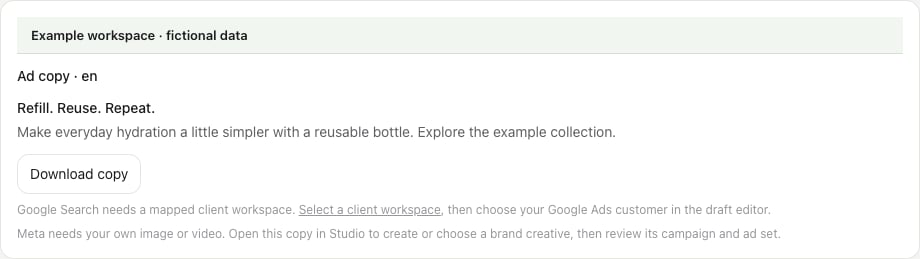
Example saved-copy card. This is a different task from preparing an image prompt.
Use the other tabs
Brand holds Studio’s brand material; account Brand settings provide reusable voice and product context. Uploads prepares your supplied assets for a reviewed launch. Briefs saves a goal and direction before image generation or video-script work.If generation stalls
Stay in Studio → Create with the same selected account. A result card marked Submitting… or Generating… is still waiting; submitting again can start separate paid work.
Click the credit balance in Studio’s header, or go to Settings → Billing → AI Credits and click its balance to open Credits wallet on subscription-plus-credit plans. Legacy plans show AI Image Credits with their own allocation instead. In Credits wallet, check Available, Reserved, and Recent activity. Confirmed failures can release unused reservations; unknown outcomes can remain reserved during reconciliation. If an amount stays unresolved, send support the account, approximate start time, displayed error, and any task/run reference available. The app does not offer a manual “release reservation” control. See Credits.
A downloaded image or a saved asset is not a launched ad. Confirm any later campaign action and check provider state separately.
Next: Prepare a Meta campaign or research competitor references.
Last reviewed: October 5, 2026.