
Create a report link
- Open Home for the intended account and select the reporting period.
- Review the results and reporting limitations, then choose Share snapshot.
- In Client report, check the account, dates, included campaign count, and available snapshot context.
- Add a Client summary with the context you want the client to see.
- Choose Create report link, or Share without summary if you deliberately leave the summary empty.
- On Your report is ready, choose Open report. Inspect the resulting page and copy the link only after it is correct.
Walk through preparation and review
These screens use a fictional account and report to show what to check before sharing.- Prepare the snapshot
- Review the report
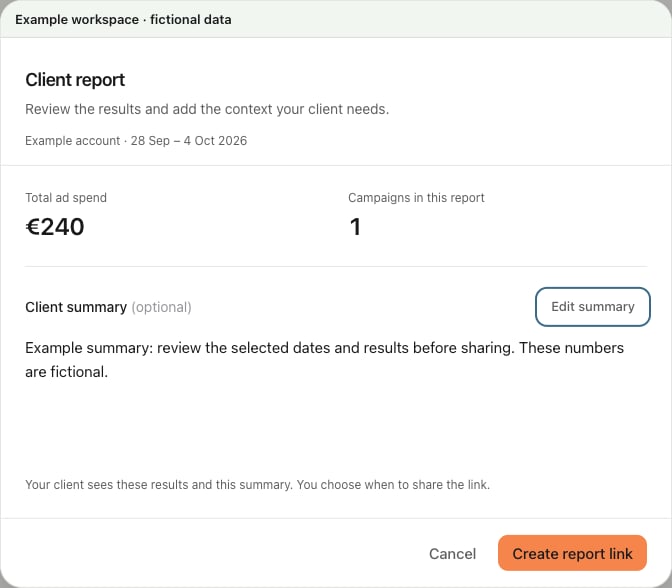
Check the account, period, and summary before Create report link.
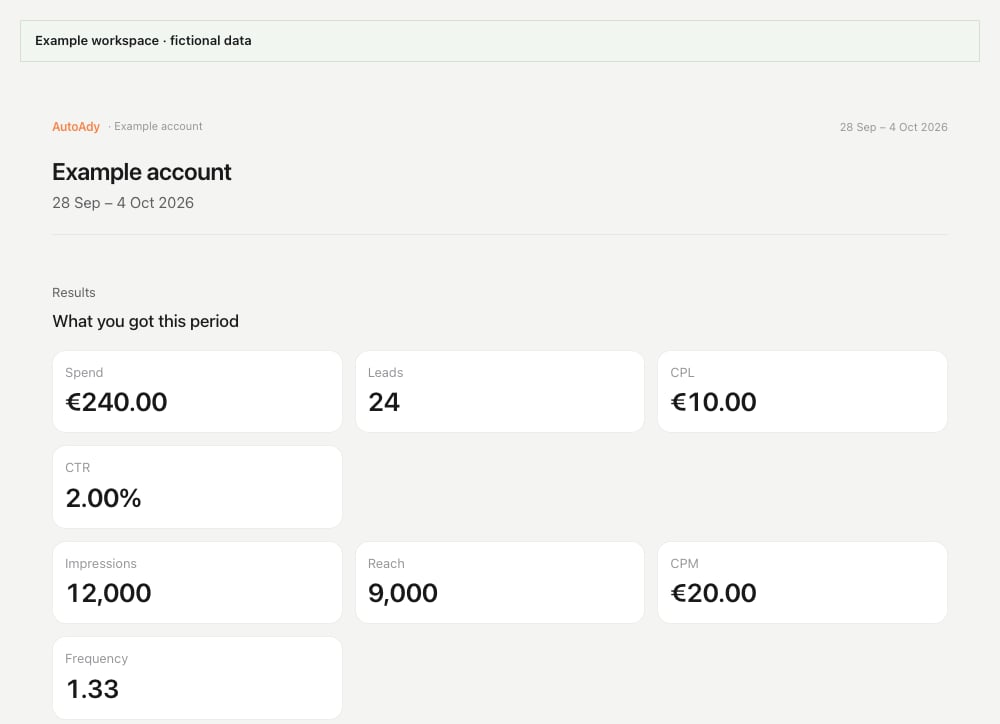
Check the report before sending
- Open report shows the account and period you intended, with the summary you want the client to read.
- The report’s totals and included campaigns agree with the snapshot you reviewed.
- You are sharing the generated report link, not a settings or dashboard URL.
- The recipient is intended to receive a link anyone can view; the saved snapshot is suitable to share.
Configure recurring reports
Scheduling requires an account you can manage and a plan with report sharing enabled. Client Viewers cannot change schedules; ask the owner or a Media Buyer if you cannot save.- Select the intended account, then open Settings → Reporting.
- In Weekly report or Monthly report, enter an email under Client recipients and choose Add. Add up to ten recipients.
- Set Send on (weekly) or Send on day (monthly), then At hour using the displayed timezone. Weekly reports cover the seven full days before send day; monthly reports cover the previous calendar month.
- Choose whether to Attach PDF copy, then Save schedule. Enable the schedule with the switch on that report card if it is off.
- Confirm the enabled switch and status on the card. After a run, check its delivery result rather than relying only on report generation.